Animation
OpenShot has been designed specifically with animation in mind. The powerful curve-based animation framework can handle most jobs with ease, and is flexible enough to create just about any animation. Key frames specify values at certain points on a clip, and OpenShot does the hard work of interpolating the in-between values.
Overview
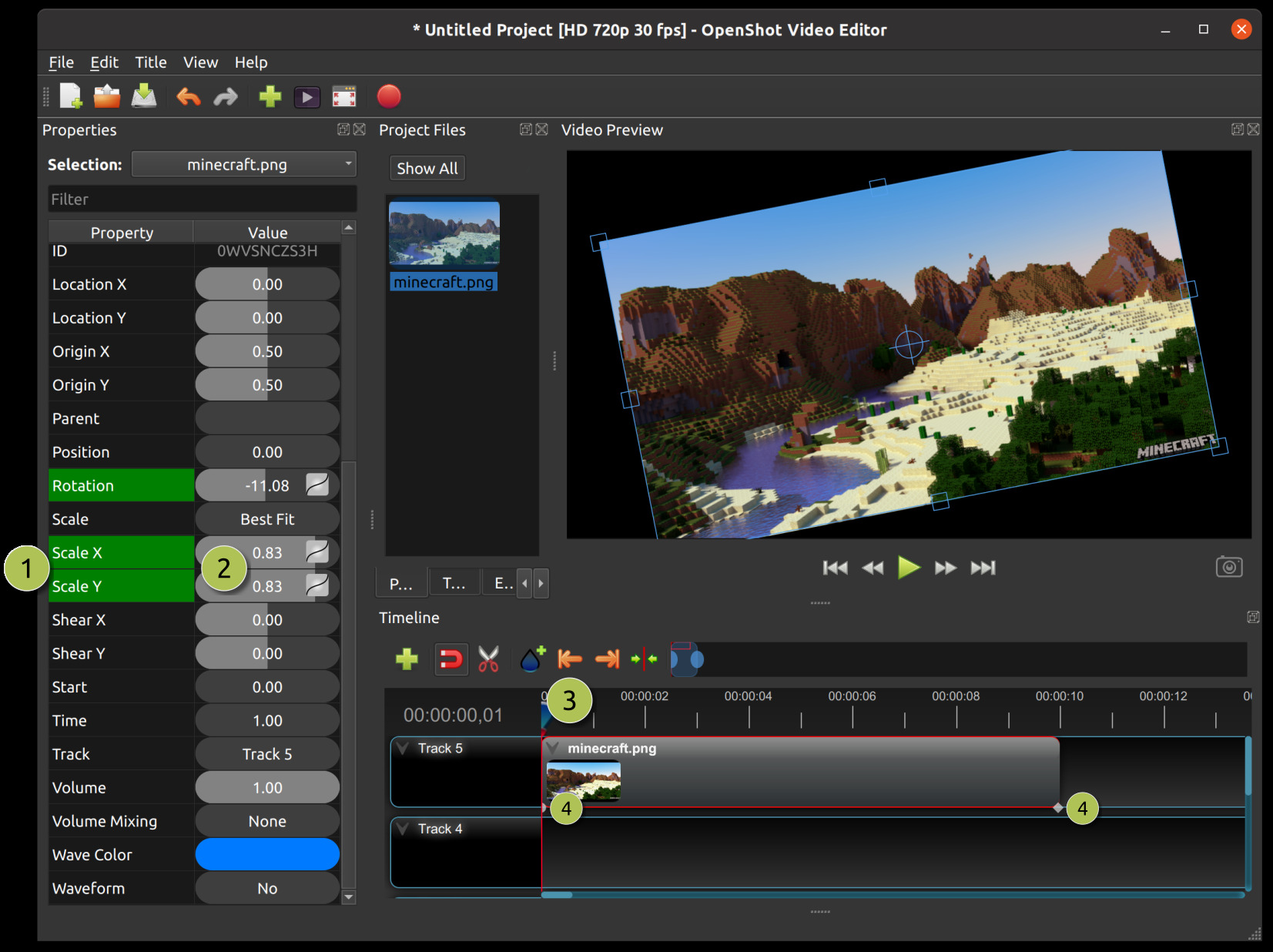
# |
Name |
Description |
|---|---|---|
1 |
Green Property |
When the play-head is on a key frame, the property appears green |
1 |
Blue Property |
When the play-head is between key frames, the property appears blue |
2 |
Value Slider |
Drag to adjust a property. With Auto Keyframes on, this also records the value at the playhead. |
3 |
Play-head |
Position the play-head over a clip where you need a key frame |
4 |
Key frame Markers |
Colorful icons line the bottom of the clip for every keyframe (circle=Bézier, diamond=linear, square=constant). Each icon matches the color of its clip, effect, or transition. The selected item’s keyframe icons are shown brighter. Filtering the property list also filters these icons. Click any icon to jump the play-head and select its clip, effect, or transition without opening the Properties dock. Double-click the icon, or right-click and choose Properties, to open the dock. Drag an icon left or right to move the keyframe and fine‑tune your animation timing. The play-head moves to the keyframe’s new position when you finish dragging. |
Key Frames
A keyframe remembers a property’s value at a particular moment. For example, to make a clip gradually grow larger, you can set its scale at the beginning and choose a larger scale near the end. OpenShot calculates the change between those two keyframes during playback.
With Auto Keyframes on (the default), move the playhead to the moment you want to change and adjust a property in the Properties dock. OpenShot adds a keyframe there, or updates it if one already exists. Move to another moment and adjust the value again to build your animation.
A property turns green when the playhead is on one of its keyframes. Small markers along the bottom of
the clip show where its keyframes are. Their shapes indicate how the values change between them:
circle=Bézier, diamond=linear, square=constant.
Use the Next Marker and Previous Marker toolbar buttons to step through the selected item’s keyframes. They follow whichever clip, effect, or transition is selected. When an effect is selected, navigation also stops at the start and end of its parent clip.
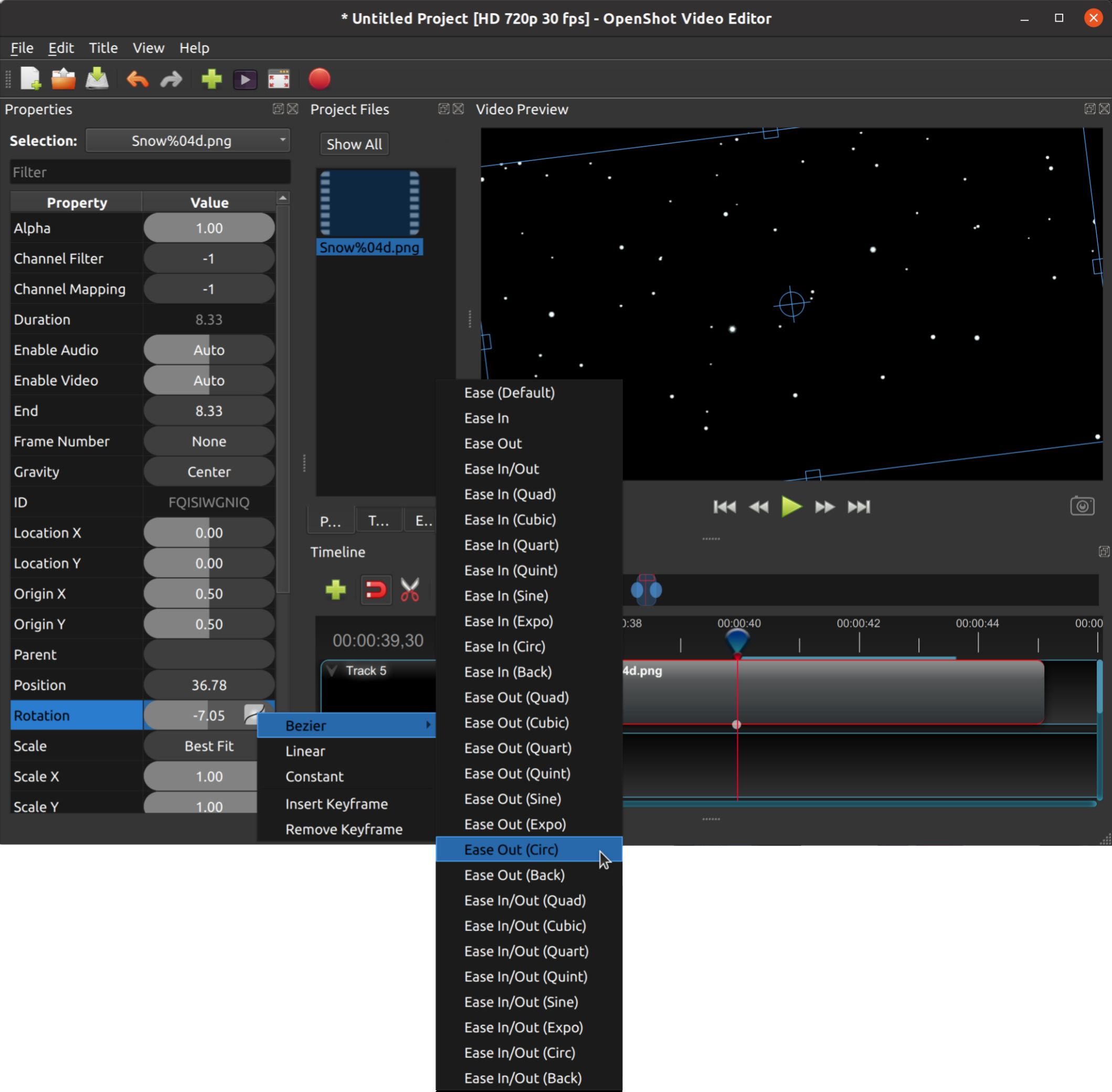
To adjust the interpolation mode, right click on the small graph icon next to a property value.
Key-frame Interpolation |
Description |
|---|---|
Bézier |
Interpolated values use a quadratic curve, and ease-in and ease-out. Icon: Circle. |
Linear |
Interpolated values are calculated linear (each step value is equal). Icon: Diamond. |
Constant |
Interpolated values stay the same until the next key frame, and jump to the new value. Icon: Square. |
Auto Keyframes
Auto Keyframes helps you animate as you edit. Leave it on to record changes at the playhead as you move, resize, or adjust a clip. You can turn it on or off with the diamond button on the timeline toolbar. The same setting applies to edits in the Properties dock and to the transform handles in the preview.
Auto Keyframes starts enabled. If you prefer to place keyframes yourself, turn off Auto Keyframes on Startup in Preferences → Timeline. OpenShot will start with it off next time, and you can still switch it on whenever you need it.
Turn Auto Keyframes off when you want to adjust existing values without adding more keyframes. For example, if you have not animated a clip’s size, you can resize it while viewing any part of the clip and keep that size throughout playback.
If a property is already animated, your edit changes its keyframe at the playhead, or the nearest one to the left. Suppose a clip grows from small to large: editing its scale halfway through with Auto Keyframes off changes the starting scale and leaves the ending scale alone. To change a particular keyframe, move the playhead onto it before editing. Turning Auto Keyframes off does not remove your animation.
Auto Keyframes only records on clips under the playhead. When the playhead is before or after a clip, editing it changes its nearest keyframe instead, so the whole clip changes without animating. When you edit several selected clips at once, each clip follows this rule on its own: clips under the playhead are keyframed at the playhead, and the others change without animating.
While editing between keyframes, the preview shows the animation at the playhead. The Properties dock may show the earlier keyframe you are changing, so its value can differ from what you see in the preview. Hover over a numeric value to check which frame you are editing.
You can also build an animation by placing keyframes yourself, with Auto Keyframes off:
Move the playhead to where you want the animation to begin.
Insert a keyframe using the keyframe panel or the Properties context menu. This remembers the current value.
Move to another moment and insert another keyframe.
Adjust its value. OpenShot animates between the two keyframes.
Repeat these steps to add more changes to the animation. See Split File for preparing shorter segments with their own starting keyframes.
Timing
Changing how fast a clip plays is done with the Time property and the Timing tool.
The Speed menu offers presets such as normal, fast, slow, freeze, reverse, and repeat. See details in Time.
The Timing tool lets you drag a clip’s edges to speed it up or slow it down. OpenShot adds the needed Time keyframes and scales your other keyframes so your animations stay aligned. Shorter clips play faster, longer clips play slower. See more: Time.
Repeating
To play a clip multiple times, use Right-Click → Speed → Repeat.
Loop repeats in one direction (forward or reverse).
Ping-Pong alternates direction (forward then backward, etc.).
Custom can add a short pause between passes, speed up or slow down each pass, including keyframes.
OpenShot writes the Time curve for you, and you can edit those keyframes just like any other. See more: Repeat.
Bézier Presets
When using a Bézier curve for animation, OpenShot includes more than 20 curve presets (which affect the shape of the curve). For example, Ease-In has a more gradual slope at the beginning, making an animation move slower at the beginning, and faster at the end. Ease-In/Out (Back) has a gradual beginning and ending, but actually goes past the expected value and then back (producing a bounce effect).
To choose a curve preset, right click on the small graph icon next to a key frame.
Ken Burns Effect
The Ken Burns effect is a pan-and-zoom animation technique — named after documentary filmmaker Ken Burns — that brings still images or video clips to life with slow, deliberate camera movement. In OpenShot, use Right-Click → Motion → Camera presets for one-click Ken Burns animations (Zoom In, Zoom Out, Pan, Zoom & Pan with Auto Direction), or set keyframes on Location X/Y and Scale X/Y manually for full control. See Context Menu.
Image Sequences
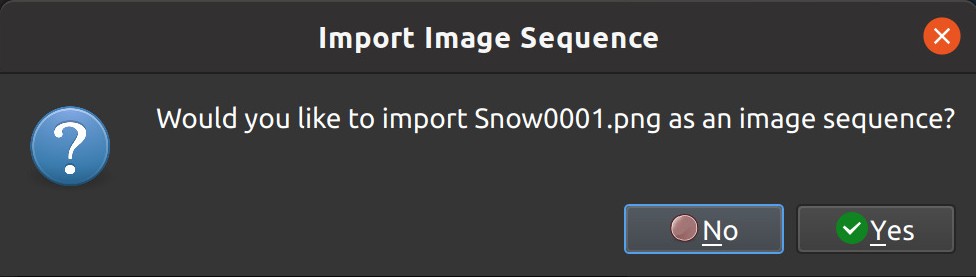
If you have a sequence of similarly named images (such as, cat001.png, cat002.png, cat003.png, etc…), you can simply drag and drop one of them into OpenShot, and you will be prompted to import the entire sequence. OpenShot will playback these sequential images rapidly, as if they are frames in a video. The rate or speed in which these images are displayed is based on their frame rate.
NOTE: Be sure your image sequence starts at 0 or 1, or you will likely receive an error when importing it into OpenShot. For example, if your sequence starts at cat222.png, or has missing images in the sequence, OpenShot will struggle to understand the sequence. An easy work-around is to renumber the images so they start with 1.
To adjust the frame rate of the animation, right click and choose File Properties in the Project Files panel, and adjust the frame rate. Once you have set the correct frame rate, drag the animation onto the timeline.
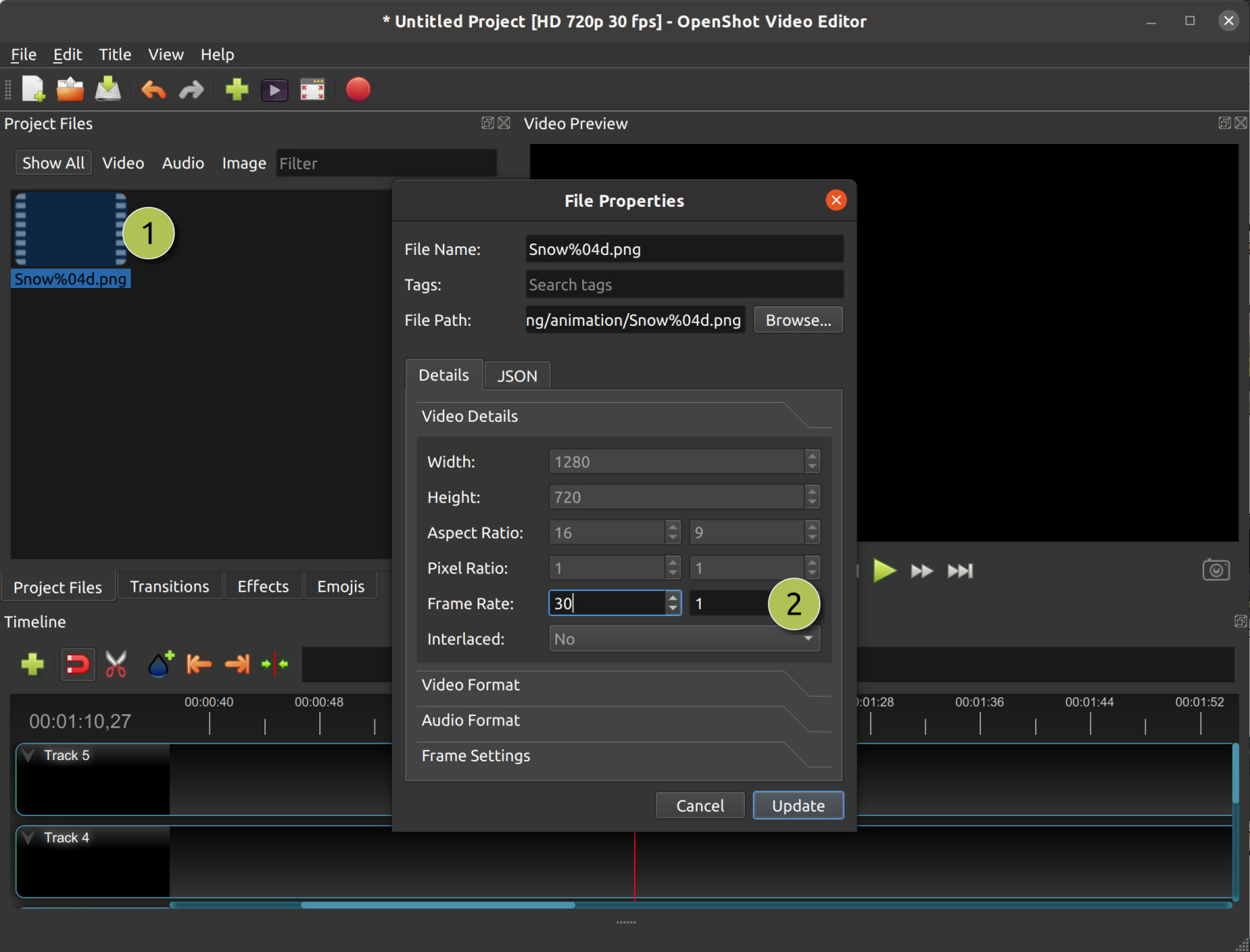
# |
Name |
Description |
|---|---|---|
1 |
File Properties |
Select an image sequence in the Project Files panel, right click and choose File Properties |
2 |
Frame Rate |
Adjust the frame rate of the animation. Typically, hand-drawn animations use 12 frames per second. |