Export
Exporting converts your OpenShot project (clips, effects, animations, titles) into a single video output
file (using a process called video encoding). By using the default settings, the exported video will be compatible
with most media players (such as VLC) and websites (such as YouTube, Vimeo, Facebook) and creates a
MP4 (h.264 + AAC) formatted video file. See MP4 (h.264).
Click on the Export Video icon at the top of the screen (or use the File→Export Video menu). The default values will work fine, so just click the Export Video button to render your new video. You can also create your own custom export profiles, see Profiles.
Simple Mode
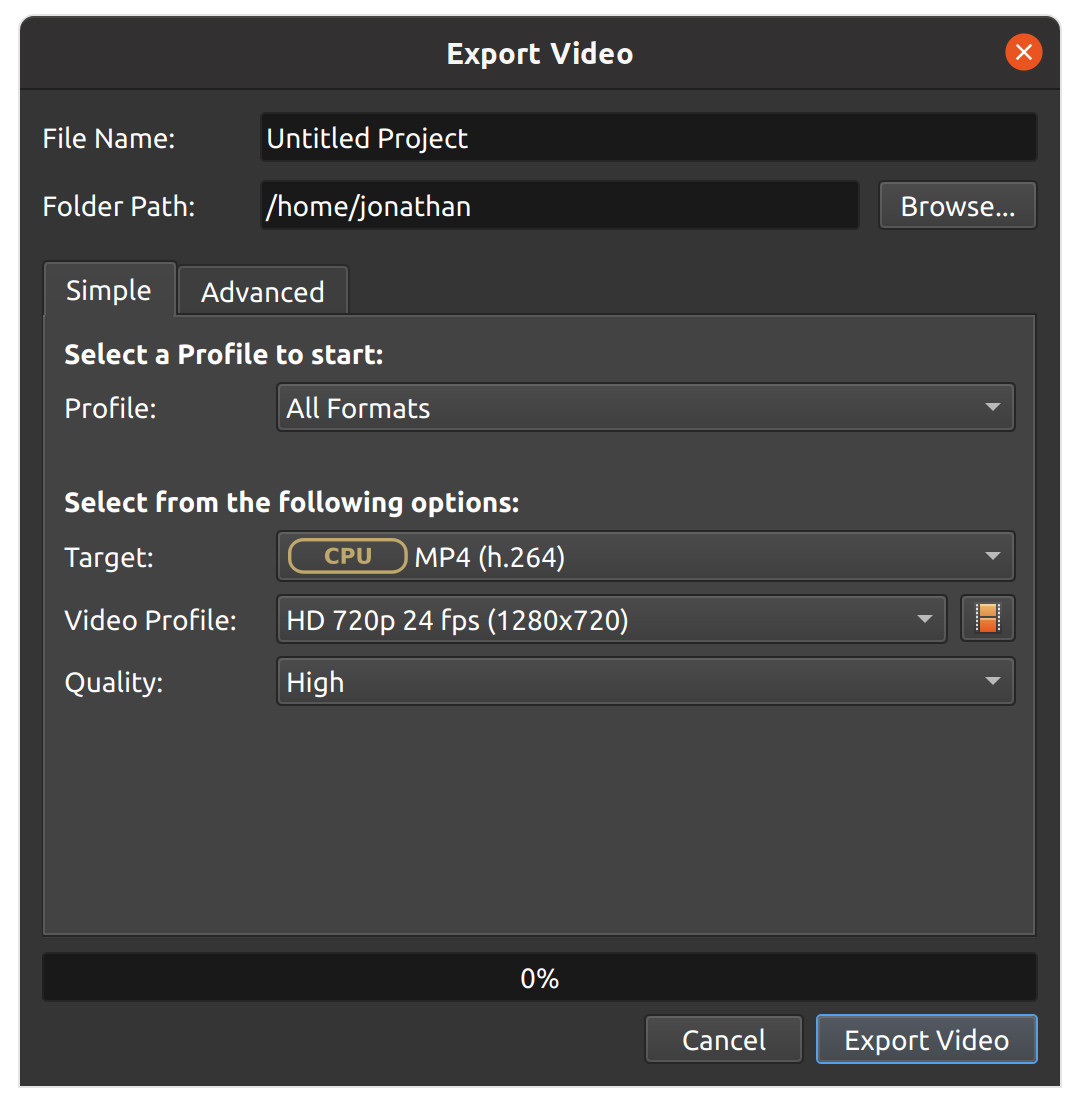
While video encoding is very complicated, with dozens of interrelated settings and options, OpenShot makes it easy, with sensible defaults, and most of this complexity hidden away behind our Simple tab, which is the default export view.
Simple Setting |
Description |
|---|---|
Profile |
Common presets (combinations of presets and video profiles grouped by category, for example: Web) |
Target |
Target presets related to the current profile (collections of common formats, codecs, and quality settings, see Preset List) |
Video Profile |
Video profiles related to the current target (collections of common size, frame rate, and aspect ratios, see Profile List or create your own Profiles) |
Quality |
Quality settings (low, med, high), which relate to various video and audio bitrates. |
Advanced Mode
Most users will never need to switch to the Advanced tab, but if you need to customize any of the video encoding settings, for example, custom bitrates, different codecs, or limiting the range of frames exported, this is the tab for you.
Advanced Options
Advanced Setting |
Description |
|---|---|
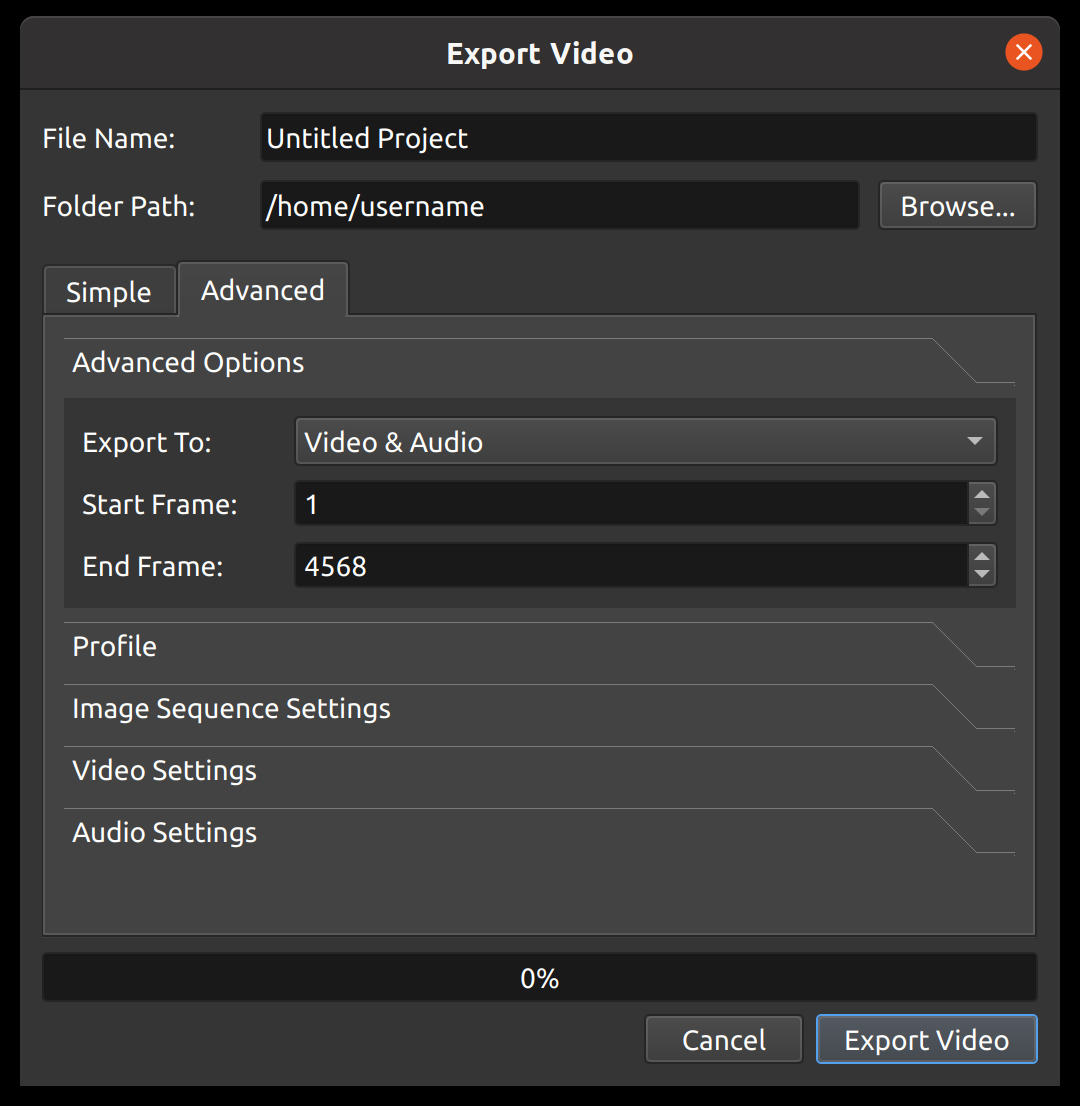
Export To |
Export both video & audio, only audio, only video, or an image sequence |
Start Frame |
The first frame to export (default is 1) |
End Frame |
The final frame to export (default is the last frame in your project to contain a clip) |
Start at First Clip |
This checkbox will toggle the Start Frame between 0.0 and the start of the first clip/transition position. |
End at Last Clip |
This checkbox will toggle the End Frame between the end of the furthest clip/transition and the full project duration. The project duration can be adjusted by dragging the right edge of any track. You will need to zoom out (Ctrl+Scroll Wheel) of the timeline before you can drag the right edge of a track. |
Profile
A video profile is a collection of common video settings (size, frame rate, aspect ratio). Profiles are used during editing, previewing, and exporting to provide a quick way to switch between common combinations of these settings. The Export Dialog will default to the same profile used by the project.
NOTE: It is important to choose a **Profile* with the same aspect ratio used when editing your project. If you are exporting at a different aspect ratio, it might stretch the image, crop the image, add black bars, or otherwise introduce an issue which changes the exported video, making it appear differently than the Preview inside OpenShot.*
Profile Setting |
Description |
|---|---|
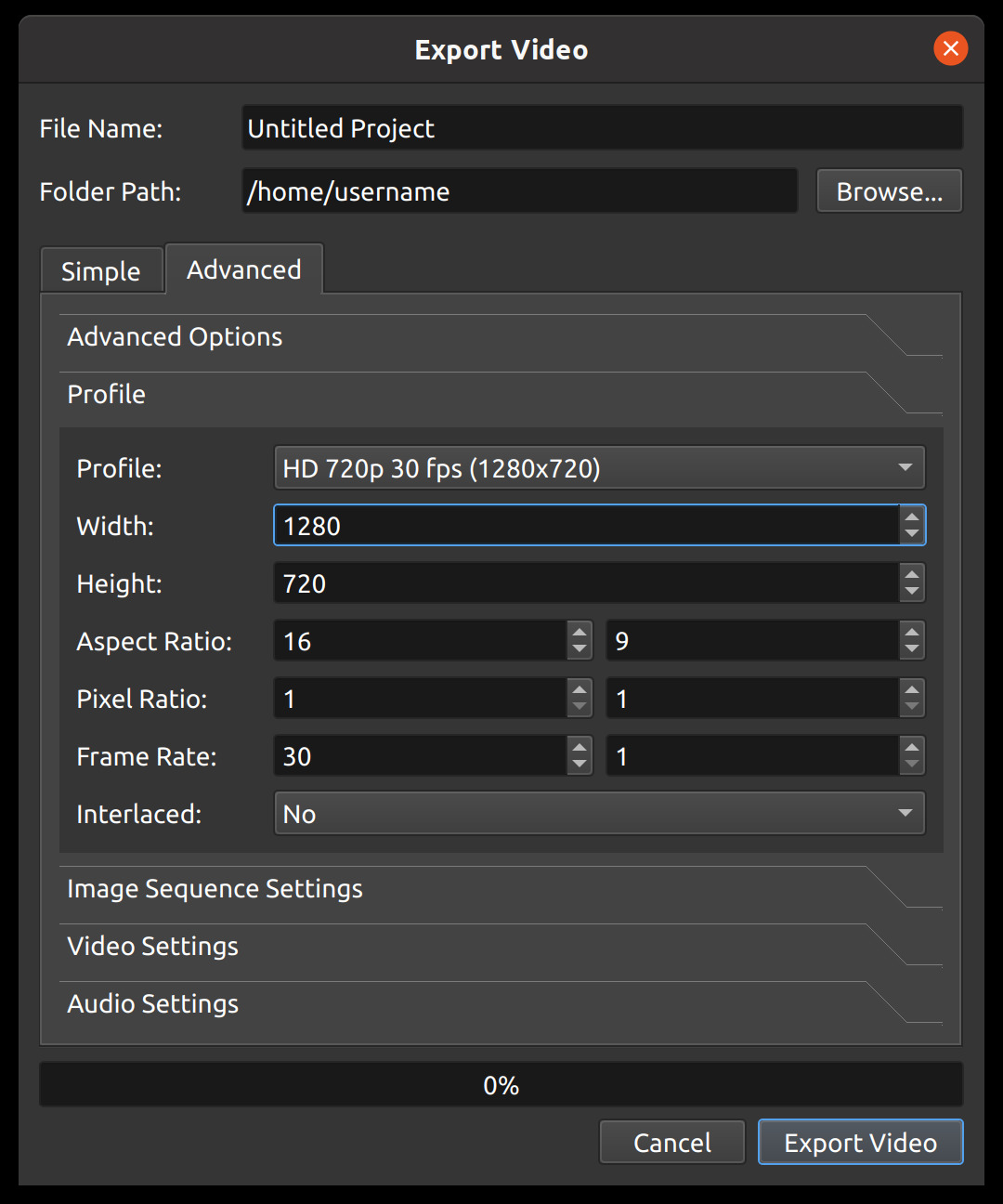
Profile |
The video profile to use during export (collection of size, frame rate, and aspect ratios, see Profile List) |
Width |
The width of the video export (in pixels) |
Height |
The height of the video export (in pixels) |
Aspect Ratio |
The aspect ratio of the final exported video. 1920×1080 reduces to 16:9. This also takes into account the pixel ratio, for example 2:1 rectangular pixels will affect the aspect ratio. |
Pixel Ratio |
The ratio representing pixel shape. Most video profiles use a 1:1 square pixel shape, but others will use rectangular pixels. |
Frame Rate |
The frequency that the frames will be displayed at. |
Interlaced |
Is this format used on alternating scan lines (i.e. broadcast and analog formats) |
Spherical |
When enabled, injects spherical 360° metadata (SV3D atom) into the exported file so compatible players immediately recognize it as a 360° video. |
Image Sequence Settings
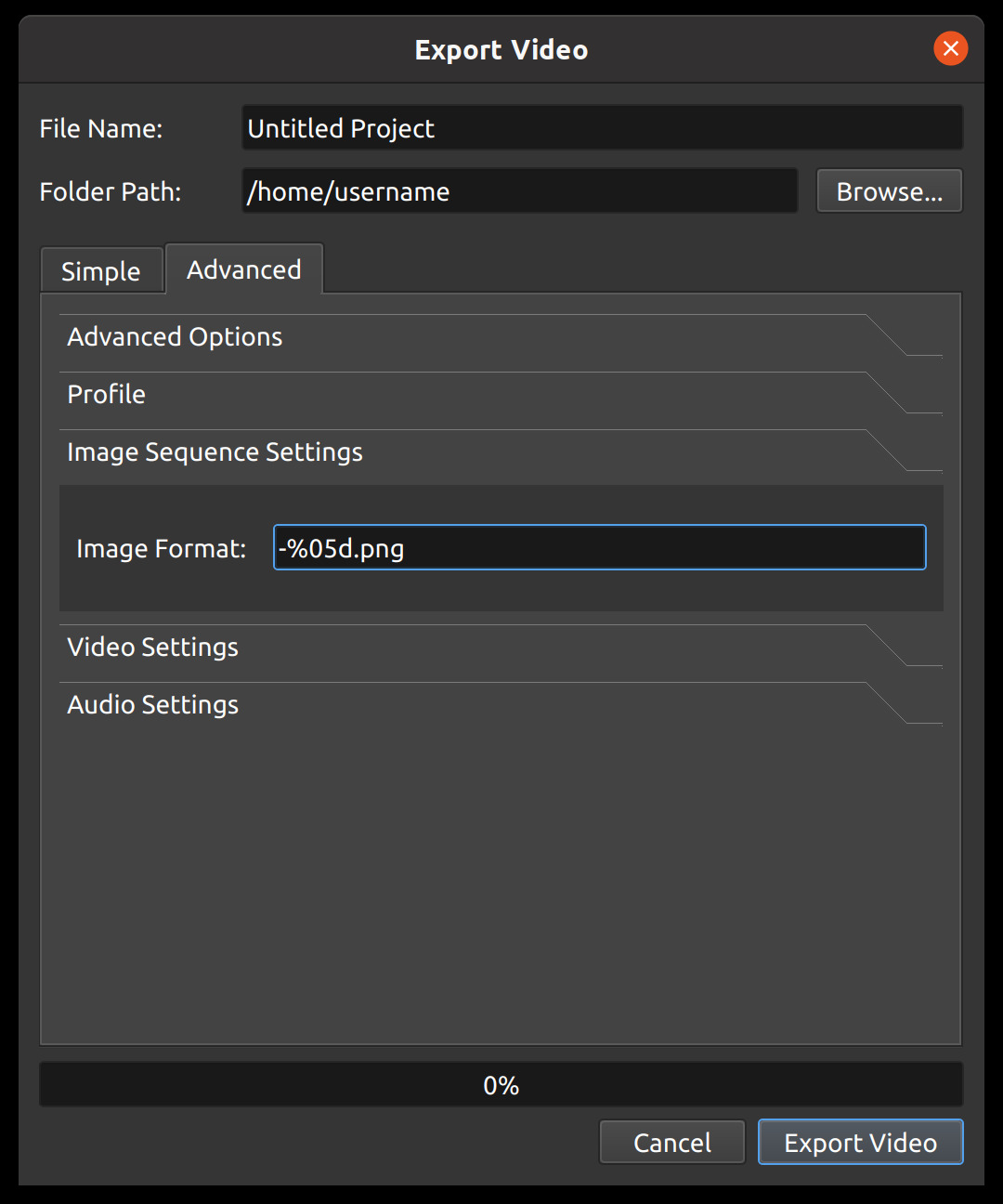
Image Setting Name |
Description |
|---|---|
Image Format |
The string format that represents the output file name in a sequence of images. For example, %05d.png would pad a number with 5 digits: 00001.png, 00002.png. |
Video Settings
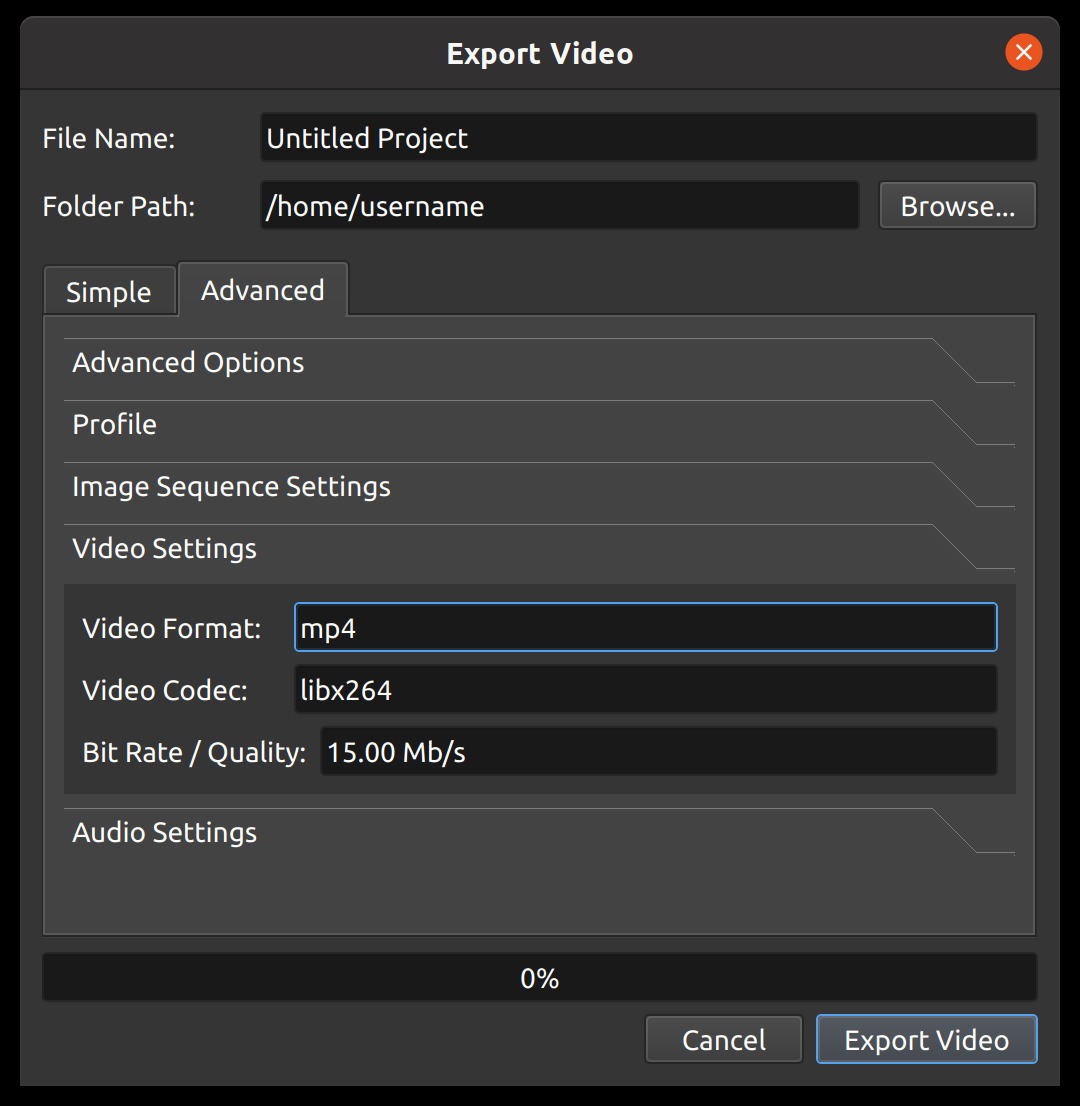
Video Setting Name |
Description |
|---|---|
Video Format |
The name of the container format ( |
Video Codec |
The name of the video codec used during video encoding ( |
Bit Rate / Quality |
The bitrate to use for video encoding. Accepts the following formats: |
Audio Settings
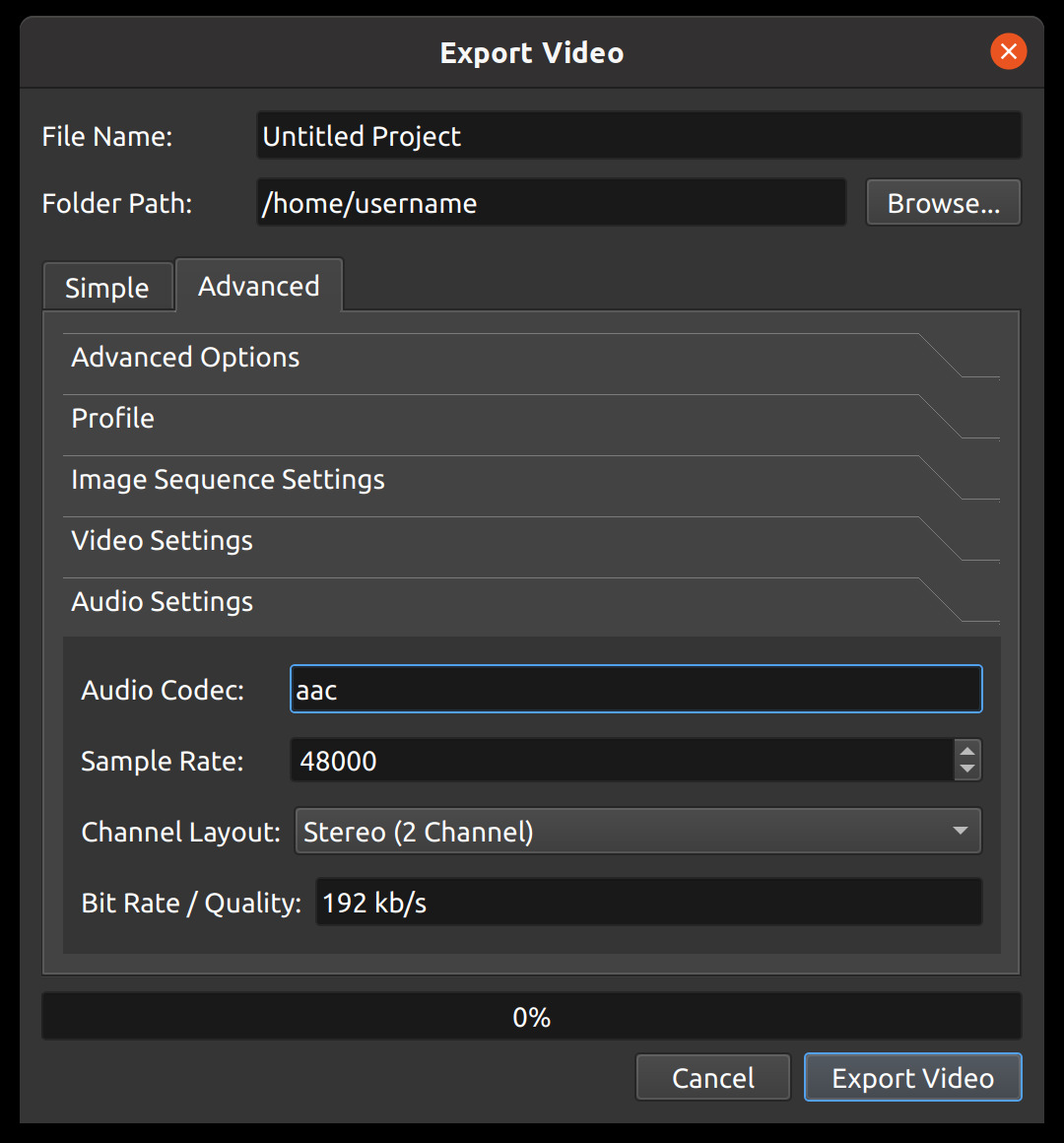
Audio Setting Name |
Description |
|---|---|
Audio Codec |
The name of the audio codec used during audio encoding ( |
Sample Rate |
The number of audio samples per second. Common values are |
Channel Layout |
The number and layout of audio channels ( |
Bit Rate / Quality |
The bitrate to use for audio encoding. Accepts the following formats: |
Export Complete
When an export finishes, a Complete tab opens in the Export window (unless Show Export Dialog when Finished is turned off in Preferences). It shows where the file was saved, with a button to copy its path, along with a summary of the export: format, resolution, quality, file size, duration, and how long the export took.
Watch Video opens the exported file in your default video player (Play Audio for audio-only exports).
Open Containing Folder opens your file manager with the exported file selected.
The Simple and Advanced tabs are still available, but read-only, so you can review exactly which settings were used. Click Done to close the window.
If an export fails, an Export Failed tab explains what went wrong. Copy Error Details copies the error and export settings (helpful when reporting a problem), and Try Again reopens the Export window with the same settings.
A successful export also fires a burst of confetti. Use the Celebrate Exports preference to show it on the first export only (the default), on every export, or never.
Hardware-Accelerated Export
OpenShot supports GPU-accelerated video encoding on supported hardware, dramatically reducing export times. Hardware-accelerated targets are shown with a badge in the Target dropdown. Select the appropriate target for your hardware:
Target (Export Dialog) |
Badge |
Requires |
|---|---|---|
|
NVENC |
NVIDIA GPU (Kepler or newer) |
|
VA-API |
Linux with AMD or Intel GPU (VAAPI driver) |
|
QSV |
Intel GPU with Quick Sync Video |
|
VideoToolbox |
macOS with Apple or Intel GPU |
|
DirectX |
Windows with DirectX-compatible GPU |
|
VA-API |
Linux VA-API — produces smaller HEVC files |
MKV variants (MKV (h.264 nv), MKV (h.264 va), etc.) are also available for each accelerator.
If none of these targets appear or export fails, your system either lacks the required driver or the
hardware encoder is not supported — fall back to the standard MP4 (h.264 + AAC) target, which uses
the CPU-based libx264 encoder and works on all systems.
Social Media Quick Reference
The table below shows the recommended Target and Video Profile settings for common social media platforms. Select these in the Simple tab of the Export dialog.
Platform
Target
Video Profile
Notes
YouTube (landscape)
YouTubeFHD 1080p 30 fpsUse
YouTube (4K)for 4KYouTube Shorts (vertical)
YouTube ShortsFHD Vertical 1080p 30 fpsUp to 60 fps
TikTok (vertical)
TikTokFHD Vertical 1080p 30 fpsUp to 60 fps
Instagram Reels (vertical)
Instagram ReelsFHD Vertical 1080p 30 fpsUp to 60 fps
Instagram (landscape/square)
InstagramFHD 1080p 30 fpsSquare (1:1) also available
Snapchat (vertical)
SnapchatFHD Vertical 1080p 30 fpsUp to 60 fps
Facebook
FacebookFHD 1080p 30 fpsSquare and vertical also available
LinkedIn (landscape)
LinkedInFHD 1080p 30 fpsSquare and 4:5 portrait also available
Twitter / X
Twitter / XFHD 1080p 30 fpsVertical also available
Vimeo
VimeoFHD 1080p 30 fpsUse High quality setting