Text & Titles
Adding text overlays, lower thirds, and titles is an important aspect of video editing, and OpenShot comes with an easy-to-use Title Editor. Use the Title menu (located in the main menu of OpenShot) to launch the Title Editor. You can also use the keyboard shortcut Ctrl+T.
Titles are simply vector image files with transparent backgrounds (*.svg). OpenShot comes with many easy-to-use
templates, but you can also create your own or import new templates into OpenShot. These templates allow you to quickly
change the text, font, size, color, and background color. You can also launch an advanced, external SVG editor for
further customizations (if needed). Once the title is added to your project, drag and drop the title on a
Track above a video clip. The transparent background will allow the video below to appear behind the text.
Edit text directly in the preview
The quickest way to add text is to type it straight onto the video preview.
Click Tt in the Timeline toolbar, choose Title → Text, or press Shift+T. A text clip is added at the playhead, above the clips already there, and its placeholder text is selected, ready to replace by typing.
Type your text. Press Shift+Enter for a new line.
Press Enter, or click outside the text, to finish. Clicking anywhere else (the preview, the timeline, another dock), moving the playhead, or pressing Play also finishes and keeps your changes; the style bar and the Properties dock change the text without finishing. The clip then shows the normal transform handles to move, scale and rotate it. Press Escape instead to remove a text you just added (or, when editing an existing text, to throw away this editing session).
To edit an existing text, double-click it in the preview, select its clip and press Enter, or right-click the clip and choose Text → Edit Text. All of its text is selected, so typing replaces it. Starting playback or seeking ends editing without keeping unfinished changes, so press Enter first to keep them.
Text style bar
While you type, a small style bar floats over the video preview:
Control |
Description |
|---|---|
Font |
The font family, from the fonts installed on your computer |
Size |
The font size, in project pixels |
Bold / Italic |
Toggle bold and italic for the whole text |
Color |
The text color (choose a transparent color to show only the outline) |
Alignment |
Align lines left, center or right inside the text box |
More (…) |
Open Edit Style for background, padding, rounded corners, outline, border, box width, and letter and line spacing |
The style bar sits at the top of the video preview. If that would cover the text you are editing, it jumps to the bottom of the preview instead, and it returns to the top once the text is clear of it again (for example, after you move the text or make it smaller). The style bar floats over the video, so it never resizes the preview. Changes from the style bar show on the video right away.
Edit Style
Edit Style has every text setting in one place. Text holds the words. Font has the style bar controls, the text outline (color and width), and letter and line spacing. Background has the box behind the text: its color, padding, rounded corners, border (color and width), and box width (where lines wrap). Open it from More (…) on the style bar, from Text → Edit Style… on a clip’s context menu, or with Edit Text… in Project Files. The preview at the top shows changes as you make them. Press Ctrl+Enter or click Apply to keep them; Enter adds a new line, and Cancel discards the changes. Restore Defaults returns everything except the text to the default style.
Line spacing sets the distance between lines as a multiple of the normal distance: 1.0 is normal, 1.5 adds half a line of space, and values below 1.0 pull lines closer together. Corner radius rounds the corners of the background and the border, in pixels; 0 keeps them square. The text outline is drawn behind the letters, so a wide outline grows outward instead of covering them. For hollow letters, give the text an outline and set the text color’s opacity to 0 in the color picker: only the outline is drawn, and the video shows through the letters.
Select several text clips (or several texts in Project Files) and choose Edit Style… to change their style together. The text box is grayed out, because each text keeps its own words, and only the settings you change are applied to all of them.
To reset text clips without opening the dialog, right-click them and choose Text → Reset Style. Their font, size, colors and outlines return to the defaults, any color or outline keyframes on those clips are removed, and their words are kept.
To give other text clips the same look, right-click a text clip and choose Copy → Text Style, then select the other text clips, right-click and choose Paste. They take the font, size, colors, outline, border, corners and spacing, plus the copied clip’s color, outline, border and corner keyframes, and keep their own words and box width. Pasting a text style onto other kinds of clips changes nothing. Copy → Keyframes → All also includes a text clip’s own text keyframes.
A new text starts with the style you used last (font, size, colors, outline, border and spacing), so a series of titles stays consistent. Without a previous text, it uses a standard font installed on your computer.
Project Files and Properties
Each text also appears in Project Files, with a thumbnail on black. Drag it onto the timeline like an image to use it again. Right-click it and choose Edit Text… (or double-click it) to edit it without placing it on the timeline. Duplicate opens a copy, ready to type, and Apply adds it as a new, independent text.
The words, font, size, spacing, alignment, box width, padding and default colors belong to the text in Project Files, so editing them updates every clip that uses that text. When a text clip is selected, these settings also appear at the top of Properties (for example Text Box Width and Text Background Padding), and changes there show on the video right away (including while you are typing).
Text color, background, outline and border colors, outline and border widths, and corner radius can be animated on each clip with keyframes in Properties, like any other clip property. These follow Auto Keyframes at the playhead. Font size, padding, box width, and letter and line spacing set the size of the text box, so they have one value per text; to animate the size of text, animate the clip’s scale. Undo and Redo work for all text changes.
Text is saved in the project file and drawn by OpenShot’s video library, so it needs no image files. Fonts come from your computer: to see the same text on another computer, install the same fonts there. One style applies to all of a text’s lines.
Text can also be added and styled from the command line; see Adding and styling text.
The Title editor (SVG templates and animated titles) and Captions (timed subtitles) remain available for more elaborate designs.
Overview
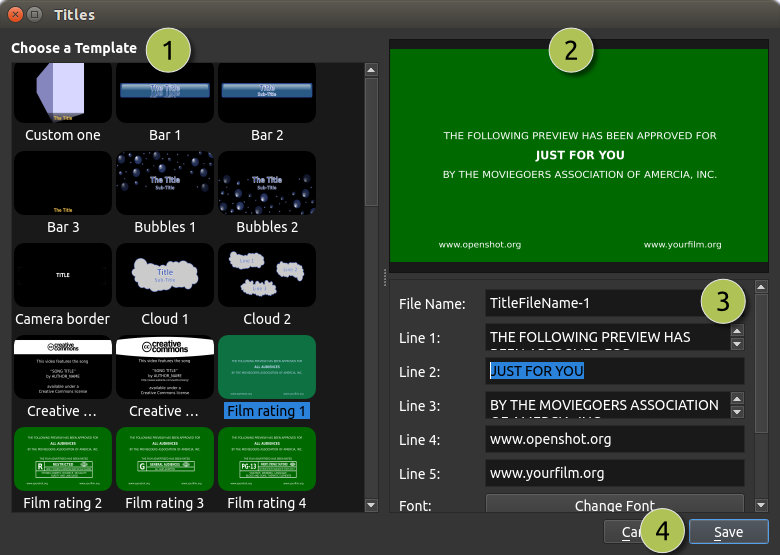
# |
Name |
Description |
|---|---|---|
1 |
Choose a Template |
Choose from any available vector title template |
2 |
Preview Title |
Preview your title as you make changes |
3 |
Title Properties |
Change the text, font, size, colors, or edit in an advanced, external SVG image editor (such as Inkscape) |
4 |
Save |
Save and add the title to your project |
Title Templates
OpenShot includes a variety of vector title templates that can be used to enhance your video projects. Below is a table listing the available titles and their descriptions:
Title Name |
Description |
|---|---|
Bar 1 |
A simple bar with text centered. |
Bar 2 |
A simple bar, centered, with 2 lines of text. |
Bar 3 |
Another variation of a simple bar with text, for lower 3rds. |
Box |
A simple boxed title layout for centered text. |
Bubbles 1 |
A title with bubble graphics for a playful look. |
Bubbles 2 |
A different bubble design for a fun and creative title. |
Camera Border |
A border that mimics a camera viewfinder with centered text. |
Cloud 1 |
A title with a playful cloud graphic and text. |
Cloud 2 |
Another playful cloud design with 3 clouds and text. |
Creative Commons 1 |
Contains text and icons for Creative Commons attribution. |
Creative Commons 2 |
Another Creative Commons design with different styling plus website text. |
Film Rating 1 |
Displays a film rating for all audiences. |
Film Rating 2 |
Displays a film rating of “R” restricted. |
Film Rating 3 |
Displays a film rating of “G” for general audiences. |
Film Rating 4 |
Displays a film rating of “PG-13”, parents strongly cautioned. |
Flare |
A title with a bright flare effect for a cinematic look. |
Flames |
A title with flame graphics for a fiery effect. |
Footer 1 |
A footer bar for lower thirds (left aligned). |
Footer 2 |
A footer bar for lower thirds (center aligned). |
Footer 3 |
A footer bar for lower thirds (right aligned). |
Gold 1 |
A title with a gold color scheme, centered with one line of text. |
Gold 2 |
Another gold-themed title, centered with two lines of text. |
Gold Bottom |
Gold title positioned at the bottom of the screen. |
Gold Top |
Gold title positioned at the top of the screen. |
Gray Box 1 |
A simple gray box for highlighting text (one line of text, top-left aligned). |
Gray Box 2 |
A simple gray box for highlighting text (two lins of text, top-left aligned). |
Gray Box 3 |
A simple gray box for highlighting text (one line of text, bottom-right aligned). |
Gray Box 4 |
A simple gray box for highlighting text (two lines of text, bottom-right aligned). |
Header 1 |
A header bar for titles or section headers (top-left aligned). |
Header 2 |
A header bar for titles or section headers (center aligned). |
Header 3 |
A header bar for titles or section headers (top-right aligned). |
OpenShot |
A title featuring OpenShot branding. |
Oval 1 |
An oval shape for highlighting or decorative purposes, text centered. |
Oval 2 |
Another oval design with a different style, text centered. |
Oval 3 |
Another oval design with two-lines of text, one at the top, one at the bottom. |
Oval 4 |
Yet another oval design, with text centered plus refection. |
Post it |
Mimics a sticky note for annotations or reminders. |
Ribbon 1 |
A ribbon graphic with text. |
Ribbon 2 |
Another ribbon design with text. |
Ribbon 3 |
A third variation of a ribbon design with text. |
Smoke 1 |
A title with smoke effects for a dramatic look. |
Smoke 2 |
Another smoke design with a different style. |
Smoke 3 |
A third variation of smoke effects. |
Solid Color |
A full-screen color background for various uses. |
Standard 1 |
A standard title design for general purposes (two lines centered). |
Standard 2 |
Another standard title with a different style (one line of text plus reflection). |
Standard 3 |
A third variation of a standard title (three lines of text). |
Standard 4 |
Yet another standard title design (four lines of text). |
Sunset |
A title with sunset gradient for a warm, end-of-day theme. |
TV Rating |
Displays TV ratings badge such as “G” and “PG” (for the corner of the screen). |
Custom Title Templates
OpenShot can use any vector SVG image file as a custom title template in the Title Editor dialog. Just add an SVG image file to your
~/.openshot_qt/title_templates/ folder, and it will appear the next time you launch the Title Editor dialog. You can
also right click on any SVG files in your Project Files panel, and choose Edit Title or Duplicate Title.
Note: These SVG templates are only used by the Title Editor dialog, and not Animated Title dialog.
3D Animated Titles
Adding a 3D animated title is just as easy, using our Animated Title dialog. Use the Title menu (located in the main menu of OpenShot) to launch the Animated Title editor. You can also use the keyboard shortcut Ctrl+B. Note: Blender must be installed and configured before this feature will work in OpenShot. See Installing Blender.
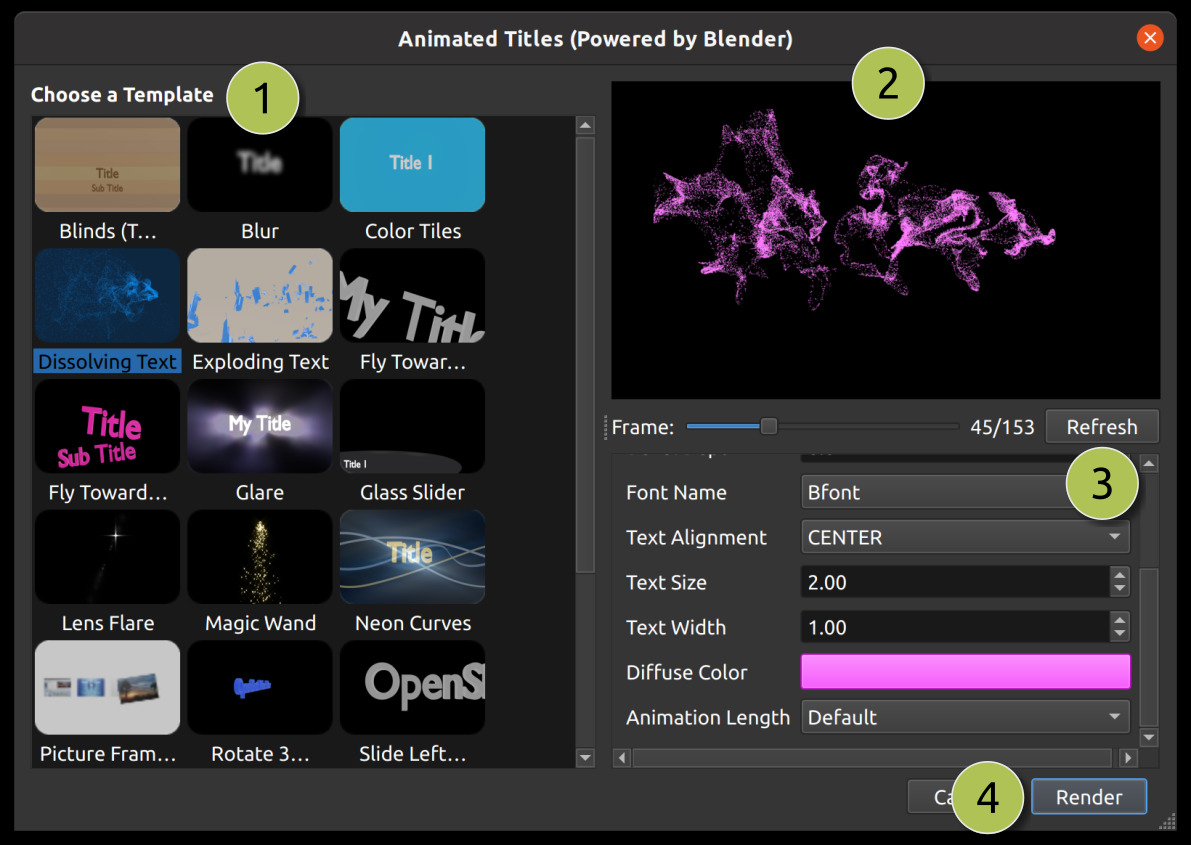
# |
Name |
Description |
|---|---|---|
1 |
Choose a Template |
Choose from any available 3D title templates |
2 |
Preview Title |
Preview your title as you make changes |
3 |
Title Properties |
Change the text, colors, and advanced properties |
4 |
Render |
Render the 3D animation, and add it to your project |
3D Animated Templates
OpenShot includes a variety of 3D animated templates that can be used to add dynamic and engaging elements to your video projects. Below is a table listing the available templates and their descriptions:
Template Name |
Description |
|---|---|
Blinds (Two Titles) |
An animation featuring a blinds effect. |
Blur |
A template that blurs text in and out, providing a smooth transition effect. |
Color Tiles |
An animation with changing colors, suitable for vibrant and dynamic titles. |
Dissolving Text |
A dissolve effect that turns any text into particles which get blown away by the wind. |
World Map |
A template featuring a rotating Earth between 2 locations. |
Exploding Text |
An animation where the title explode into pieces, adding dramatic impact. |
Fly Towards Camera |
A fly-by animation with a single title zooming past the screen. |
Fly Towards Camera (Two Titles) |
Similar to Fly By 1, but with two titles flying by. |
Glare |
An animation with a glare effect, adding a bright, reflective look. |
Glass Slider |
A sliding glass effect, providing a modern and sleek transition. |
Lens Flare |
An animation featuring a lens flare, adding a cinematic touch. |
Magic Wand |
A whimsical magic wand effect, ideal for magical or fantasy themes. |
Neon Curves |
An animation with neon curves, creating a futuristic and vibrant look. |
Picture Frames (4 pictures) |
A template featuring four picture frames, suitable for showcasing images or video clips. |
Rotate 360 |
A 360-degree rotation effect, providing a dynamic title animation. |
Slide Left to Right |
A sliding effect where titles move from left to right. |
Snow |
An animation with falling snow particles, perfect for winter or holiday themes. |
Space Movie Intro |
A cinematic space-themed intro, ideal for epic or sci-fi projects. |
Wireframe Text |
An animation with wireframe text, adding a technical or digital look. |
Zoom to Clapboard |
A zoom title with a clapboard, perfect for film or video production themes. |
Importing Text
You can generate text & titles in many different programs, such as Blender, Inkscape, Krita, Gimp, etc… Before you can import text into OpenShot, you must first export the text from these programs into a compatible image format that contains a transparent background and alpha channel.
The SVG format is a great choice for vector graphics (curves, shapes, text effects and paths), however
it is not always 100% compatible with OpenShot. Thus, we recommend using PNG format, which is a great web-based
image format that can include a transparent background and alpha channel. A transparent background and alpha channel
are needed for OpenShot to allow the text to not cover up videos and images on the timeline below them.
For information on importing animated sequences into OpenShot, please see Image Sequences.
Installing Inkscape
The Advanced Editor feature in the Title Editor dialog requires the latest version of Inkscape (https://inkscape.org/release/) be installed and the OpenShot Preferences updated with the correct path to the Inkscape executable. See the General tab in Preferences.
Installing Blender
The Animated Title feature in OpenShot requires the latest version of Blender (https://www.blender.org/download/) be installed and the OpenShot Preferences updated with the correct path to the Blender executable. See the General tab in Preferences. NOTE: The minimum supported version of Blender is 5.0+. Older versions of Blender are not compatible with OpenShot Video Editor.
For a detailed guide on how to install these dependencies, see Blender & Inkscape Guide.